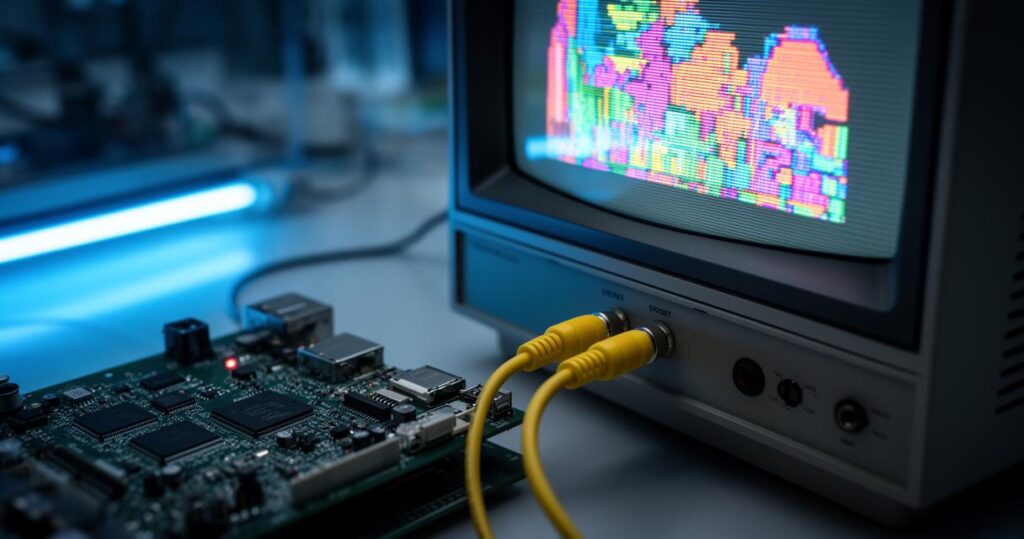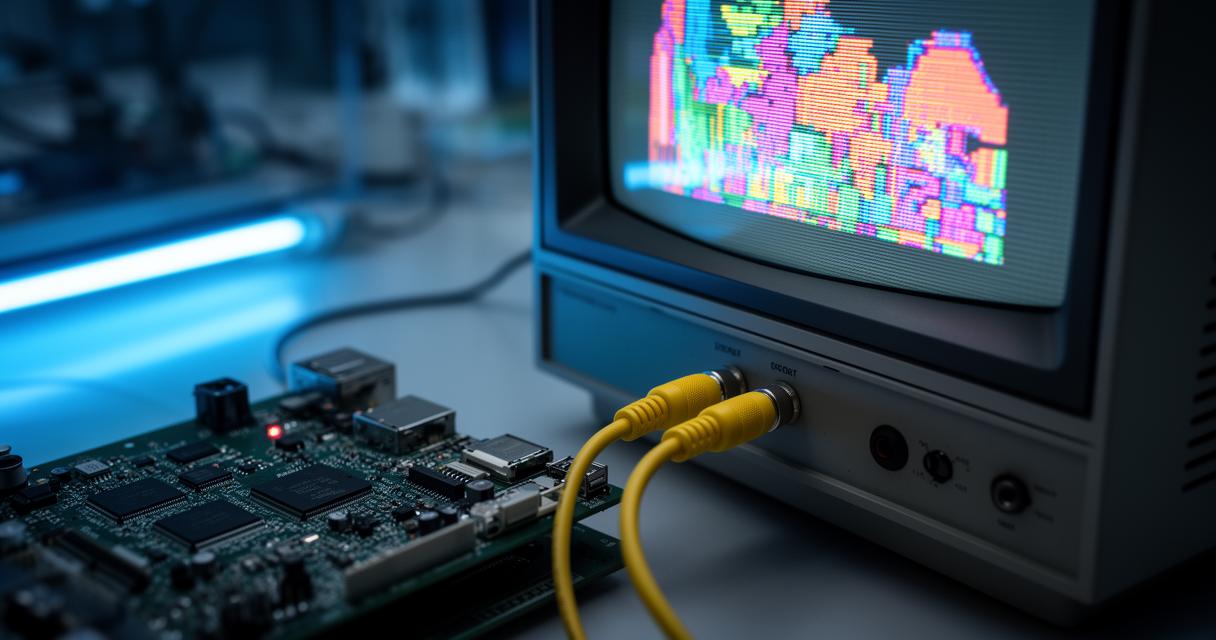
Retro gaming enthusiasts exploring the MiSTer FPGA platform often find themselves at a crossroads when deciding how to connect their beloved device to a display. While HDMI has become the modern standard, many purists gravitate towards composite video output for that authentic, nostalgic feel. This article delves into what you can genuinely expect when pairing MiSTer FPGA with composite video, weighing the charm of analogue signals against the practicalities of image quality and performance.
Key takeaways
- The MiSTer FPGA platform supports composite video output, allowing users to recreate the authentic, softer aesthetic of classic gaming consoles.
- Composite video sacrifices digital clarity for a nostalgic blur that effectively masks sharp pixel edges on CRT televisions.
- Users can connect via the Analog IO board, which offers extra features, or the more affordable 'Direct Video' method that provides better color depth.
- Achieving the best quality requires matching the output to the display, with consumer TVs favoring 15kHz signals and professional monitors offering superior but costly performance.
- Proper synchronization settings in the mister.ini file are essential to minimize input lag and avoid display issues when using analogue connections.
- Active video adapters are recommended over passive ones to ensure stable, reliable signal conversion across various retro game titles.
- Optimizing the visual experience involves adjusting aspect ratios and settings within the MiSTer configuration to match the original design of each game.
Understanding Composite Video Output on MiSTer FPGA: What to Expect
The MiSTer FPGA platform is renowned for its versatility, offering multiple video output options to suit different setups and preferences. Composite video, one of the oldest analogue standards, remains a popular choice amongst those wishing to recreate the authentic look of classic consoles on period-appropriate hardware. Unlike digital connections, composite video combines all the picture information into a single signal, which was the norm for decades before component and digital standards took over.
Composite video versus hdmi: a quality comparison
When comparing composite video to HDMI, the differences become immediately apparent. HDMI delivers crisp, digital clarity with sharp edges and vibrant colours, whereas composite video tends to produce a softer image with less defined lines. This softness isn't necessarily a drawback, though, as many retro gaming aficionados believe it actually enhances the experience by mimicking how these games were originally intended to be viewed. The MiSTer FPGA documentation outlines two primary connection methods for analogue output: using the VGA port on the Analog IO board, or employing an HDMI-to-VGA adapter. Each route has its own merits and compromises worth considering before committing to a setup.
The retro aesthetic: why some gamers prefer composite connections
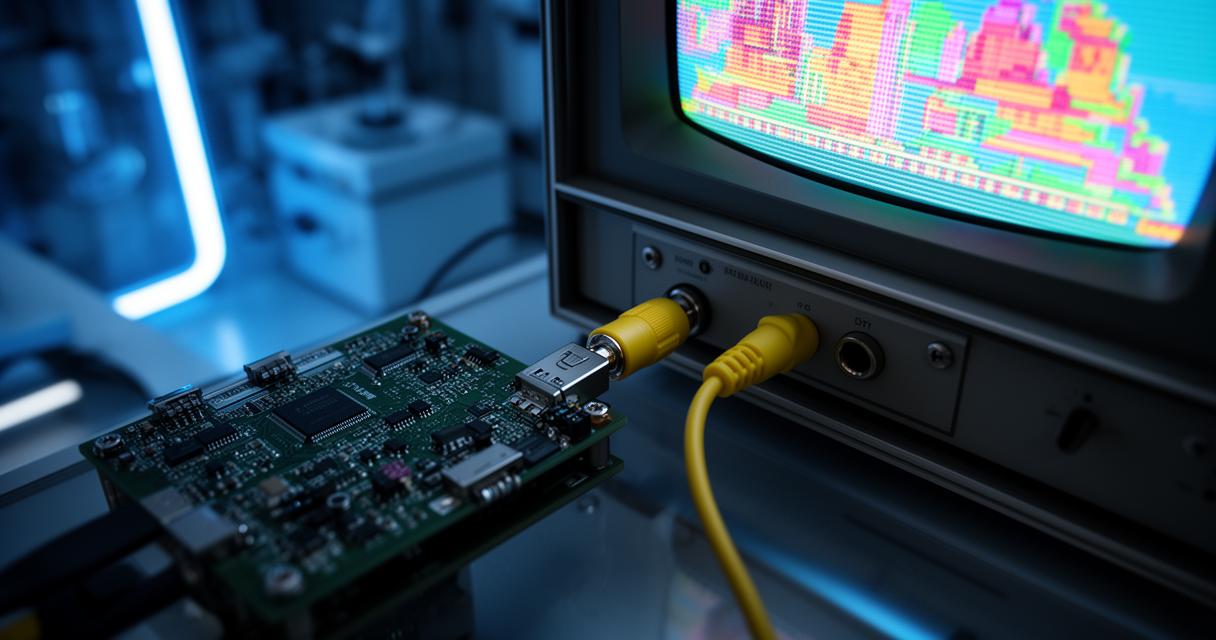
There's something undeniably charming about firing up a classic title on a genuine CRT display connected via composite video. The slight blur and gentle glow of an old television screen can smooth over pixel art in ways that modern displays simply cannot replicate. This is precisely why many MiSTer FPGA users specifically seek out composite or even S-Video connections rather than settling for the cleaner but arguably less authentic HDMI output. The Analog IO board offers extra features and doesn't require the notorious SoG modification, though it comes at a higher price point and may offer reduced colour depth in certain cores. Alternatively, Direct Video provides better colour depth and proves more affordable, though it lacks those additional features and some dongles may prove incompatible.
Image Quality and Performance: Weighing the Pros and Cons
Setting realistic expectations is crucial when venturing into composite video territory with your MiSTer FPGA setup. The image quality achieved will largely depend on the type of display you're connecting to and the specific cable configuration employed. For consumer televisions, connecting via RGB SCART often yields the best results, while other setups might require a VGA to Component cable instead.
Resolution and Clarity: Realistic Expectations for Composite Display
Composite video inherently limits resolution and clarity compared to digital alternatives, and this is simply a characteristic of the technology rather than a flaw. Most consumer televisions are compatible with 15kHz signals, which suits the composite output beautifully, whilst computer monitors typically accept 31kHz signals and may struggle somewhat with 240p signals commonly used in retro gaming contexts. Professional video monitors, meanwhile, offer superior image quality and extensive connectivity options, though they often come with a considerably heftier price tag that puts them out of reach for casual users.
- Consumer televisions: best suited to 15kHz signals and RGB SCART connections
- Computer monitors: generally handle 31kHz signals, with reduced quality at 240p
- Professional video monitors: excellent clarity but expensive and less accessible
Input lag and sync considerations when using analogue outputs
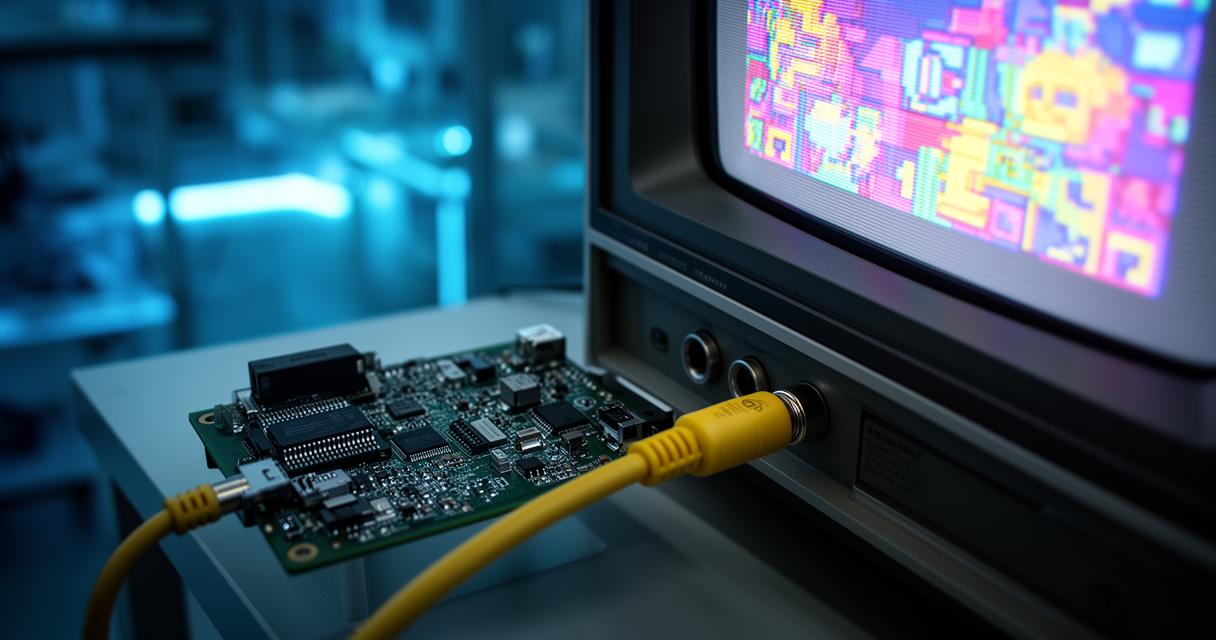
Sync issues can occasionally plague analogue setups, particularly when configuring settings within the mister.ini configuration file. Users connecting via RGB SCART to consumer TVs will typically need to enable composite_sync=1, whereas those using component connections should set vga_mode=ypbpr and potentially flip the SoG switch to achieve proper synchronisation. Input lag remains minimal on well-configured composite setups, though it's worth noting that improper cabling or incompatible adapters can introduce unwanted delays that disrupt gameplay, especially in fast-paced titles requiring precise timing.
Optimising Your MiSTer FPGA Setup for the Best Composite Experience
Achieving the best possible composite video output requires a bit of tinkering and patience, but the results can be tremendously rewarding for those willing to invest the effort. Understanding your display's capabilities and matching them with appropriate connectivity options makes all the difference between a mediocre experience and an authentically satisfying one.
Adjusting Aspect Ratios and Screen Settings for Various Games
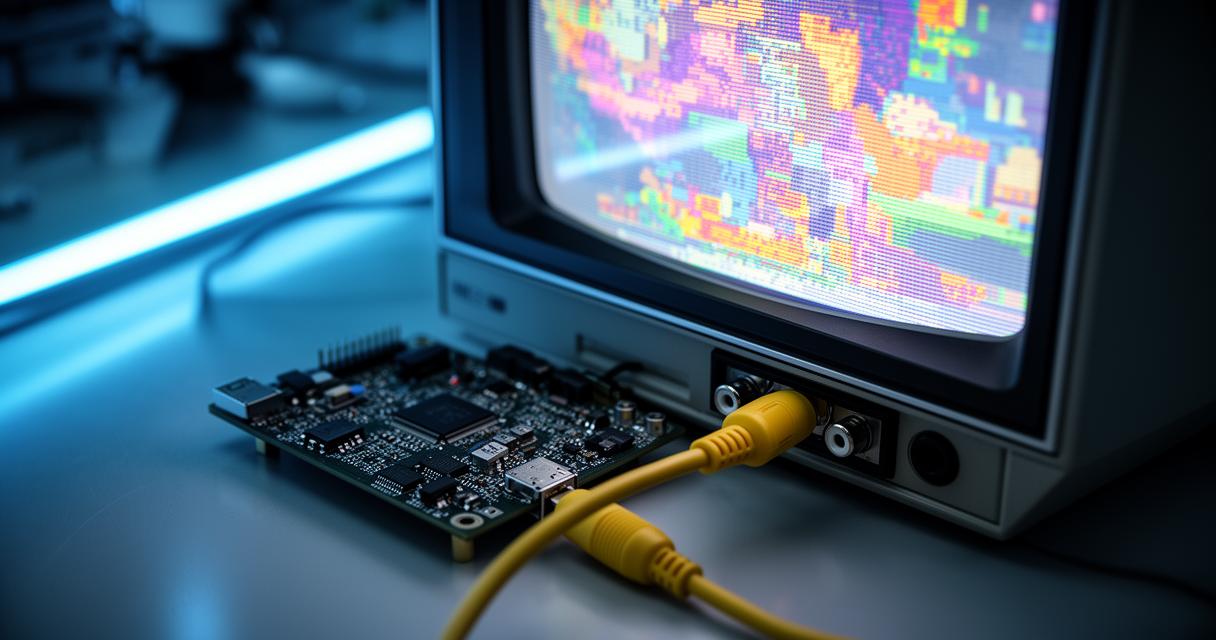
Different games were originally designed with varying aspect ratios in mind, and getting this right on your MiSTer FPGA setup can significantly enhance visual accuracy. Whether you're connecting through native outputs or relying on active adapters for S-Video and composite signals, taking time to adjust these settings within your configuration ensures each title appears as intended. Active adapters are generally recommended over passive alternatives, as they tend to produce more stable and reliable results across a broader range of games and consoles.
Future tweaks and user preferences: enhancing performance over time
The beauty of the MiSTer FPGA ecosystem lies in its ongoing development and the active community continuously refining settings and configurations. As you become more familiar with your particular setup, whether utilising consumer televisions, computer monitors, or professional video monitors, you'll likely discover personal preferences regarding colour depth, sync stability, and overall picture quality. Many users find that revisiting their mister.ini configuration periodically, experimenting with different cables, and staying informed about community-developed tweaks can gradually elevate their composite video experience from merely functional to genuinely impressive.